 ReadKeeps
阅记
ReadKeeps
阅记
You just clicked “Save to ReadKeeps” in your browser:
If ReadKeeps is already on this Mac, copy the link and press to save it. ReadKeeps is currently in external testing on TestFlight.

READKEEPS · READ LATER, AND YOUR OWN WEB ARCHIVE
Vol. 1.0 — 2026Autumn
Content may be lost, but what you saved won’t.
The moment you save, ReadKeeps keeps a snapshot of the original page and a clean Reader View copy together on your device. If the original is deleted or the site shuts down, you can still read, highlight and search it offline — and it lives only on your device and in your own iCloud.
iPhone · iPad · Mac | iOS / iPadOS 17 and macOS 14 or later | 1.0 is free · No account · No tracking
Now in external testing on TestFlight · Not yet available on the China mainland App Store
Mark this line first.
Read it anywhere, save it right there.
Use the system share sheet or the Safari extension, or copy a link and come back to ReadKeeps; on a Mac, press or drag a link to the menu bar. Once saved, fetching runs in a queue, and you’ll be told whether it succeeded or failed.
-
Share ReadKeeps iPhone · iPad
In any app, tap Share and choose ReadKeeps; it also accepts epub, txt and pdf ebooks directly.
-
Safari extension “Save to ReadKeeps” iPhone · iPad · Mac
Saves the page as already rendered, with the sign-ins you have in Safari.
-
Copy a link, back to ReadKeeps iPhone · iPad · Mac
Turn on clipboard detection in Settings, and ReadKeeps prompts “Article link detected” when you return — that’s how WeChat articles get saved.
-
· Drag to menu bar Mac
Press the shortcut to save the link on your clipboard, or drop a link onto the menu bar icon.
-
Quick Save widget iPhone · iPad
Put it on the Home Screen or Lock Screen; copy a link, then one tap saves it.
-
Bulk import iPhone · iPad · Mac
Export files from Pocket, Instapaper or Cubox, browser bookmarks, or a list of links — imported, then archived one by one.
*Save the same article twice (with tracking parameters, or as a mobile and a desktop version) and you’ll be told, then taken to the copy you already have.
*Bulk import brings in links; each article is fetched again online. Anything the original platform has already deleted can’t be brought back.
WeChat articles:
copy the link, come back.
Fig. 1 Caching progress in the iPhone Dynamic Island and on the Lock Screen
Tap the island to watch it again.
What you saved, scattered across a dozen apps — now in one place, in your own iCloud.
— On saving, and iCloud
What you read on WeChat, what you found in a browser, what friends sent along — no longer lying in the favorites of separate apps, but in one library, searched, tagged and highlighted together. The library syncs through iCloud across iPhone, iPad and Mac, and stays in your own Apple Account, where the developer can’t see it.
Library
218 articles
Gather it, then shelve it.
Never through the developer’s servers; without iCloud, it can live on this device alone.
The post is deleted later, or “can’t be viewed” — the copy you saved is still yours to read.
— On WeChat Official Account articles
Images are downloaded and inlined locally; lazy-loaded images are restored too. Only what you saved before the deletion can be read.
This content can’t be viewed due to a violation
Save it before it’s gone.
Every article, saved twice.
One is a snapshot of the original page, its images and styles inlined locally; the other is clean Reader View text. Articles open as the Live Page by default; when the link is dead, you’re offline or something fails, the snapshot from the moment you saved appears instead.
Both sides, marked
on the same line.
The original’s gone.
This one stays.
Fig. 3a Live Page
Fig. 3b Reader View
readkeeps.org
Welcome to ReadKeeps
Why save web pages at all
. Links break, WeChat articles get deleted, servers shut down — what’s truly worth rereading should stay, whole, on your own device.
…
— like the two examples in this article.
Note
Try tapping this highlight — its note shows up here.
*Online, the Live Page shows the page as it is now; only when it can’t load does it fall back to the snapshot from when you saved.
*If the original is redesigned and a highlight no longer lines up, it’s kept as an “orphan highlight” — never lost.
*Snapshots strip out page scripts; you can also choose in Settings to keep Reader View only.
Select it, and it’s highlighted.
Four colors — yellow, green, blue and red. Select text to highlight it, and attach a note if you like. Step through an article’s highlights one by one and tap to jump back to each; highlights from every article and book gather in one place, filterable by color.
PICK A PEN
Sample
Keep the words worth rereading, in your own hands.
Export as Markdown — highlights and notes only, copied to the clipboard, Obsidian-friendly.
Create a long image — select a passage to make an excerpt card with its source and a QR code.
*Markdown export contains only highlights and notes, not the full article.
READ · KEEP
Content may be lost, but what you saved won’t. Links break, WeChat articles get deleted, servers shut down — what’s truly worth rereading should stay, whole, on your own device.
— Welcome to ReadKeeps
readkeeps.org/en/welcome

Pick a passage,
make it an image.
Typesetting, handed back to the reader.
Reader View is carefully typeset, in English and Chinese alike: a system sans or a serif, with adjustable size, line spacing and page width, in Light, Sepia and Dark themes. Articles, epub and TXT share one set of appearance settings.
Size and spacing,
your way.
Light · System
Finish it slowly
Web pages vanish, links rot, and algorithms bury old writing at the bottom of the feed. Real collecting isn’t hoarding links — it’s keeping the words worth rereading, and finishing them slowly in a quiet moment.
Sepia · Serif
Finish it slowly
Web pages vanish, links rot, and algorithms bury old writing at the bottom of the feed. Real collecting isn’t hoarding links — it’s keeping the words worth rereading, and finishing them slowly in a quiet moment.
Dark · Serif
Finish it slowly
Web pages vanish, links rot, and algorithms bury old writing at the bottom of the feed. Real collecting isn’t hoarding links — it’s keeping the words worth rereading, and finishing them slowly in a quiet moment.
Pl. 1 Light · System FFFFFF / 22211E
Pl. 2 Sepia · Serif FAF4E7 / 3E362A
Pl. 3 Dark · Serif 1F2124 / E9E7E1
On the bookshelf, the same pen.
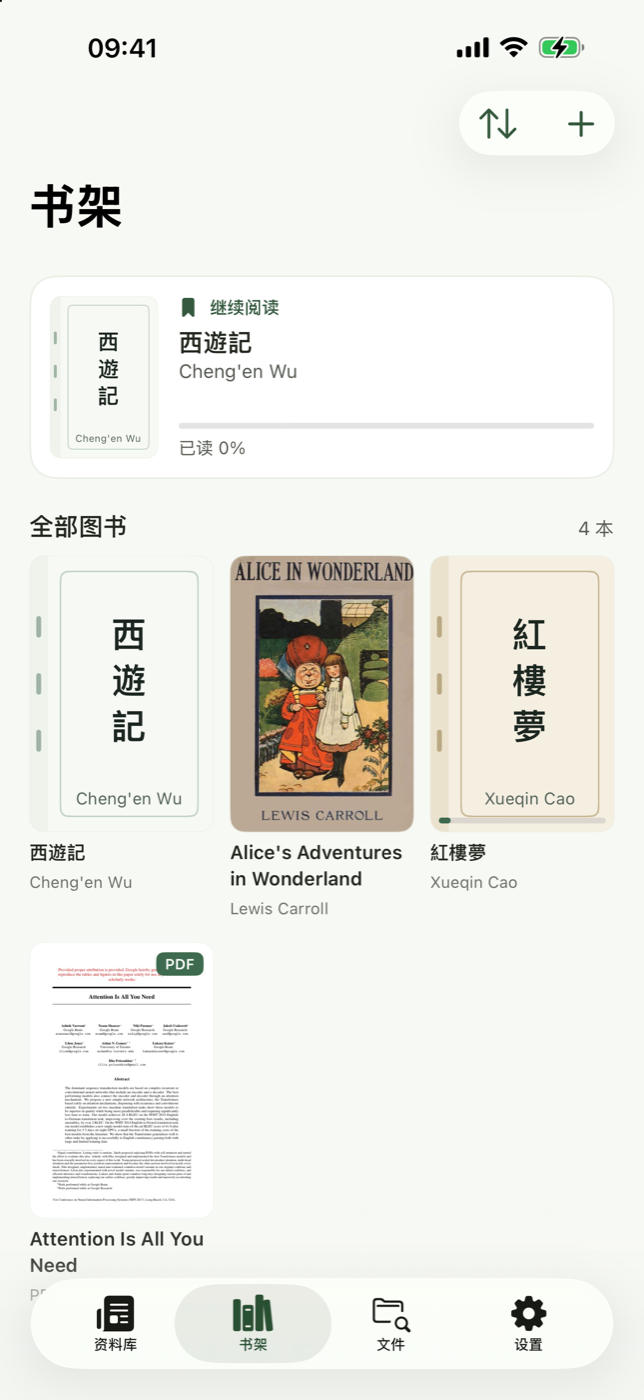
Import epub, PDF and TXT to the bookshelf: paged or scrolling, with a page-curl turn on iOS; contents, bookmarks, highlights and notes are all there. TXT encodings — GB18030, Big5, UTF-8 — are detected automatically.
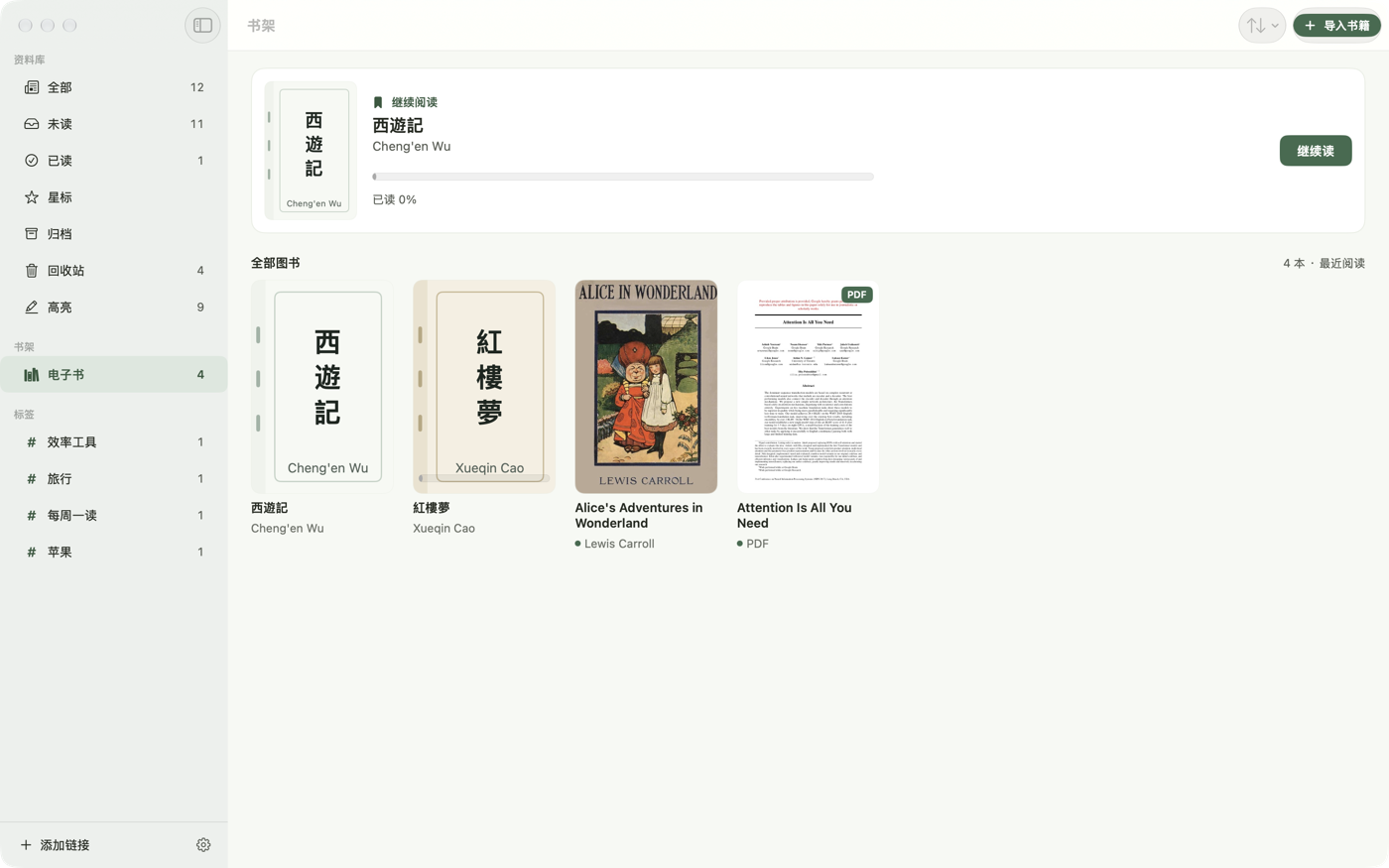
Fig. 4 The bookshelf on Mac (sample data: public-domain books and an openly published paper)
*PDFs don’t follow the reading appearance settings; DRM-protected books aren’t supported.
TYPE NOTES
- Font
- System · Serif
- Size
- 17 by default, adjustable
- Spacing
- Compact 1.6 · Standard 1.9 · Relaxed 2.3
- Width
- Narrow 560 · Standard 680 · Wide 840
- Theme
- Light · Sepia · Dark
*Page width is for iPad and Mac; letter spacing and margins are set in the new appearance panel on iPhone with iOS 26.
Whatever you saved, you can find again.
One search box covers article titles and text, the full text inside your ebooks, and the highlights and notes you’ve written. Chinese needs no word segmentation, and a hit takes you straight to the spot.
- Article · Welcome to ReadKeeps Content may be lost, but what you saved won’t. Links break, WeChat articles…
- Highlight · Yellow · Welcome to ReadKeeps Content may be lost, but what you saved won’t Note: Try tapping this highlight — its note shows up here.
- In a book · Alice’s Adventures in Wonderland …when suddenly a White Rabbit with pink eyes ran close by her.
- No “rabbit” in your articles or highlights.
Sample data · the in-book hit comes from the public-domain Alice’s Adventures in Wonderland on the bookshelf
- Unread
- Read
- Starred
- Archive
- #Tags
- Websites
- Trash · 30 days
Chinese, too —
no word breaks needed.
*No folders: you organize with stars, the archive, tags and website filters.
Three devices, one archive.
Articles, text, highlights, tags and reading progress sync across iPhone, iPad and Mac; snapshots, book files and optional offline audio and video travel through iCloud Drive. Without iCloud, everything still works on this device alone.
*What syncs across devices is reading progress as a percentage.
This archive is yours alone.
- Title
- ReadKeeps 1.0
- Account
- None — no sign-up, no sign-in
- Tracking & analytics
- None — no third-party tracking or ad SDKs
- Where content lives
- Your devices; optionally synced to your own private iCloud database
- Servers
- The developer’s servers do three things only: receive diagnostic logs and reading feedback you choose to upload (deleted after 30 days; feedback includes a screenshot of the page, its title and link, but not the text or snapshot); relay Dynamic Island pushes (carrying only a push token and the site’s domain, never stored); and deliver site-adaptation rules. Apart from feedback you upload, your saved content, highlights and notes never pass through them.
- Price
- 1.0 is free, with no in-app purchases
- Runs on
- iPhone · iPad (iOS / iPadOS 17 or later) · Mac (macOS 14 or later); details on the facing page
- Release
- Now in external testing on TestFlight; App Store release date TBD; not yet available on the China mainland App Store
| Feature | iPhone | iPad | Mac |
|---|---|---|---|
| Save from the share sheet | Supported | Supported | Not supported |
| Safari extension | Supported | Supported | Supported |
| Paste link · clipboard detection | Supported | Supported | Supported |
| Shortcut & menu bar quick save | Not supported | Not supported | Supported |
| Live Page snapshot + Reader View | Supported | Supported | Supported |
| Four-color highlights & notes | Supported | Supported | Supported |
| Full-text search (books & notes too) | Supported | Supported | Supported |
| epub / PDF / TXT bookshelf | Supported | Supported | Supported |
| Offline audio & video * | Supported | Supported | Supported |
| Excerpt long images | Supported | Supported | Supported |
| Home & Lock Screen widgets | Supported | Supported | Not supported |
| Live progress: Island & Lock Screen | Supported | Not supported | Not supported |
| Floating glass reader controls † | Supported | Not supported | Not supported |
| iCloud sync ‡ | Supported | Supported | Supported |
*Excludes YouTube, Bilibili and Douyin videos.
†Requires an iPhone on iOS 26 or later; iPad, Mac and earlier versions use the system toolbar.
‡What syncs across devices is the reading-progress percentage, not an exact paragraph position.
Page highlights9in all
Only the lines this page marks itself are counted — the app screens in the illustrations aren’t. Each one links back to where it sits.
Just like the app’s
highlights view.
- what you saved won’tOpening
- save it right thereChapter One · Save
- still yours to readInsert · On WeChat articles
- saved twiceChapter Two · Two Copies
- it’s highlightedChapter Three · Highlight
- to the readerChapter Four · Read
- you can find againChapter Five · Find
- is yours aloneChapter Six · Colophon
- your first articleCoda
Now, go and save your first article.
ReadKeeps 1.0 is free, with no sign-up; iPhone, iPad and Mac share one app.
iPhone · iPad · Mac | iOS / iPadOS 17 and macOS 14 or later | 1.0 is free · No account · No tracking
Now in external testing on TestFlight · Not yet available on the China mainland App Store